
Phishing is when someone pretends to be a trusted company or person in order to make you reveal a password, a card number or a code. The message is often an email, a text message or a chat message, and the tool they use is a link. Learning to read links is one of the most useful safety skills you can have.
Look at the real destination
On a computer, move the mouse over a link without clicking and read the address that appears at the bottom of the browser. On a phone, press and hold the link to preview it. The text you see in the message can say one thing while the real address says another.
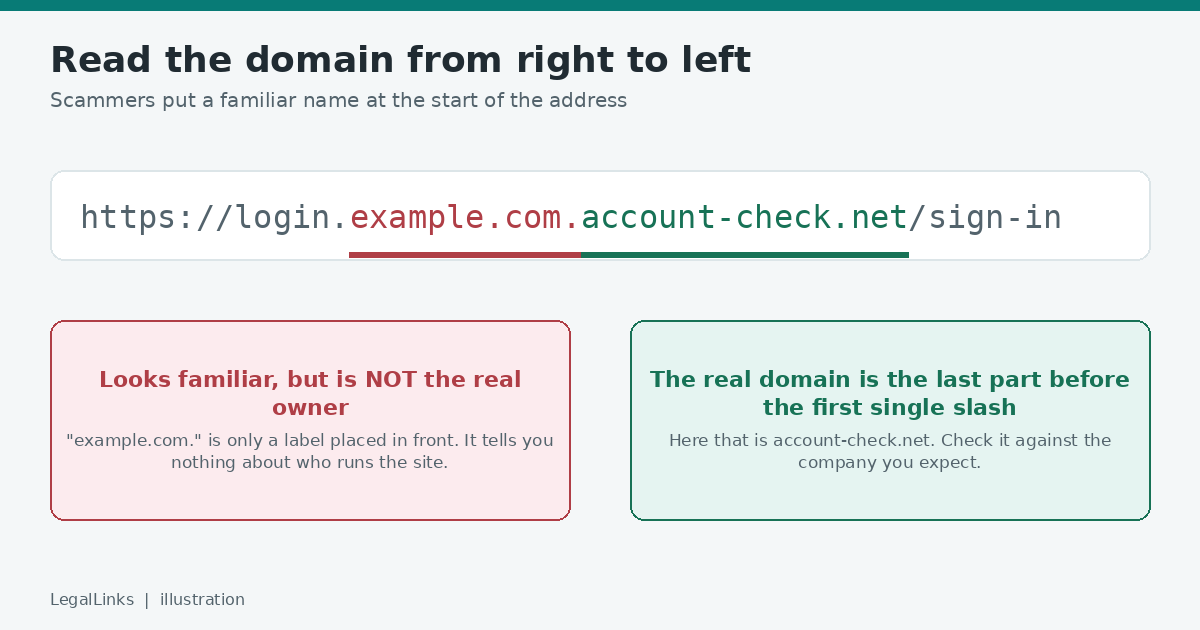
Read the domain from right to left
The important part of an address is the domain, the name just before the first single slash. In login.example.com.account-check.net the real domain is account-check.net, not example.com. Scammers place a familiar name at the start to fool a quick glance.
Watch for small spelling tricks
- Letters swapped or doubled, such as paypall or amazom.
- The number 0 instead of the letter o, or a capital I instead of a lowercase l.
- Extra words such as secure, verify or support added to a brand name.
Notice the pressure
Phishing messages try to make you act before you think: “Your account will be closed in 24 hours”, “Unusual sign-in detected”, “You have won a prize”. A real company rarely demands an immediate click. If a message makes you feel rushed or scared, slow down.
Be careful with shortened and hidden links
Shortened addresses hide the destination. That is not wrong in itself, since many people use them for convenience, but it means you should trust the sender, not the link. If you cannot tell who sent it, do not open it.
Check the sender, not only the link
Look at the full sender address, not just the display name. Be suspicious of attachments you did not expect, even from someone you know, because their account may have been taken over.
A safe routine in five steps
- Pause and read the message again.
- Preview the real address without clicking.
- Do not enter passwords from a link in a message. Open the service by typing its name or using your own bookmark.
- Turn on two-step verification for important accounts so a stolen password alone is not enough.
- If you already clicked and typed something, change that password straight away and contact the service.
Examples of what phishing messages look like
Real messages vary, but they follow a few patterns. Here are three typical ones, written so that you can recognise the shape without copying a real scam.
- The delivery notice: “Your parcel could not be delivered. Pay a small fee to rearrange.” Delivery companies rarely ask for payment through a link in a text message. Go to the company’s own website or app instead.
- The account warning: “We noticed a sign-in from a new device. Confirm your identity now.” The link leads to a copy of a sign-in page that records what you type.
- The shared document: “A colleague shared a file with you.” The sender may be a hacked account, and the link opens a fake sign-in page. If you did not expect the file, ask the person through another channel.
QR codes deserve the same care
A QR code is just a link that you cannot read. Scammers stick fake codes over real ones on parking meters, posters and menus. Before you scan one in a public place, check that it has not been covered by a sticker. After scanning, read the address your phone shows before you open it, and never enter payment details on a page you reached from an unexpected code.
Why a padlock does not prove a site is safe
The padlock icon in the browser only means that the connection to the site is encrypted. Criminals can get this too, so a fake bank page can show a padlock. What matters is whether the domain name is the one you expect and whether you arrived there by your own choice, not through a message that pushed you.
If you already clicked
Do not panic; speed matters more than embarrassment. If you only opened the page and typed nothing, close it and run a security scan if you feel unsure. If you typed a password, change it at once on the real site and anywhere else you used the same one. If you entered card details, call your bank using the number on your card. If a work account is involved, tell the person responsible for security at your organisation; reporting early usually limits the damage.
Teach the people around you
Phishing works because it targets people, not machines. Spend five minutes showing a parent, a colleague or a new team member how to preview a link and what a fake sign-in page can look like. Agreeing on a simple rule, such as “we never send passwords or payment requests by message”, protects a whole group.
What responsible link services do
Services that create protected links should refuse harmful destinations, remove reported links quickly and make it easy to report abuse. At LegalLinks we do not allow phishing, malware or scams, and you can report a link through our contact page. Read our Terms of Use for details.
No tool can replace attention. A few seconds of checking each unexpected link is the cheapest protection you will ever get.